
Download Double Commander File Manager
Free dual-pane file manager for Windows, macOS, and Linux. Browse, copy, and manage files across two panels with tabs, plugins, and built-in tools.
What Is Double Commander?
A free, open-source dual-pane file manager built for people who want full control over how they browse, copy, and organize files.
A File Manager That Stays Out of Your Way
Double Commander is a cross-platform file manager that gives you two side-by-side panels for working with files. Instead of dragging things between separate Explorer windows, you get both source and destination visible at the same time. Built with Free Pascal and Lazarus by developer Alexander Koblov, the project has been actively maintained since its early releases and continues to ship regular updates.
If you have ever used Total Commander, the interface will feel familiar right away. Double Commander supports WCX, WDX, WFX, and WLX plugins from Total Commander, so migrating your existing plugin collection takes almost no effort. The application runs natively on Windows (XP through 11), macOS 10.10 and later, Linux with GTK2 or Qt5/Qt6, FreeBSD, and even Haiku OS.
Why Users Choose Double Commander
The dual-pane layout is only the starting point. Double Commander includes a built-in text editor with syntax highlighting, a hex and binary file viewer, and a multi-rename tool that handles batch renaming across hundreds of files in seconds. Extended search lets you dig through file contents with regex patterns, and the directory synchronization feature keeps two folders mirrored without needing a separate sync utility.
Keyboard-driven users tend to appreciate the configurable shortcut system, which allows multiple key combinations per action. A customizable button bar at the top of the window lets you launch external programs or scripts directly from the file manager. Tabbed browsing within each panel means you can switch between locations without losing your place. Background file operations keep the interface responsive even during large transfers.
Who Is It For?
Double Commander fits anyone who spends a lot of time moving or organizing files. System administrators, developers, and power users on Linux and Windows tend to make up the core audience, but the clean interface works just as well for someone who simply prefers the twin-panel approach over a standard single-pane file browser. At roughly 10 MB installed, it stays lightweight and opens in about a second on most hardware. The current release is version 1.2.9 gamma, published under the GPL-2.0 license.
Ready to try it? Download Double Commander or read the full feature breakdown below.
Key Features
Double Commander packs serious file management power into a clean dual-pane layout. Here is what makes it a go-to tool for power users on Windows, macOS, and Linux.
Dual-Pane File Management
Work with two file panels side by side, each with its own tabbed browsing. Copy, move, and compare files between locations without juggling multiple windows. The split-panel layout mirrors the classic Total Commander workflow that power users have relied on for decades.
Tabbed Browsing
Open multiple directories as tabs within each panel and switch between them with a click. This means you can pin frequently used folders and jump between project directories, downloads, and backup paths without losing your place.
Built-in Text Editor
Edit files directly with the internal text editor, which includes syntax highlighting for common programming languages. Quick edits to config files, scripts, or logs happen right inside the file manager – no need to open a separate application.
File Viewer with Hex Mode
Preview files in text, binary, or hex mode without leaving Double Commander. The built-in viewer handles plain text, binary data, and hexadecimal inspection, which is especially useful when examining unknown file types or verifying data structures.
Extended Search
Search across drives and directories with full-text content matching. Find files by name, size, date, or even by searching inside their contents. This goes well beyond what the default OS file search offers, and results appear fast even on large directory trees.
Directory Synchronization
Compare and synchronize two directories with a visual diff tool. Double Commander highlights differences between folder contents and lets you selectively copy or update files in either direction. Great for keeping backup folders, NAS drives, or USB sticks in sync.
Multi-Rename Tool
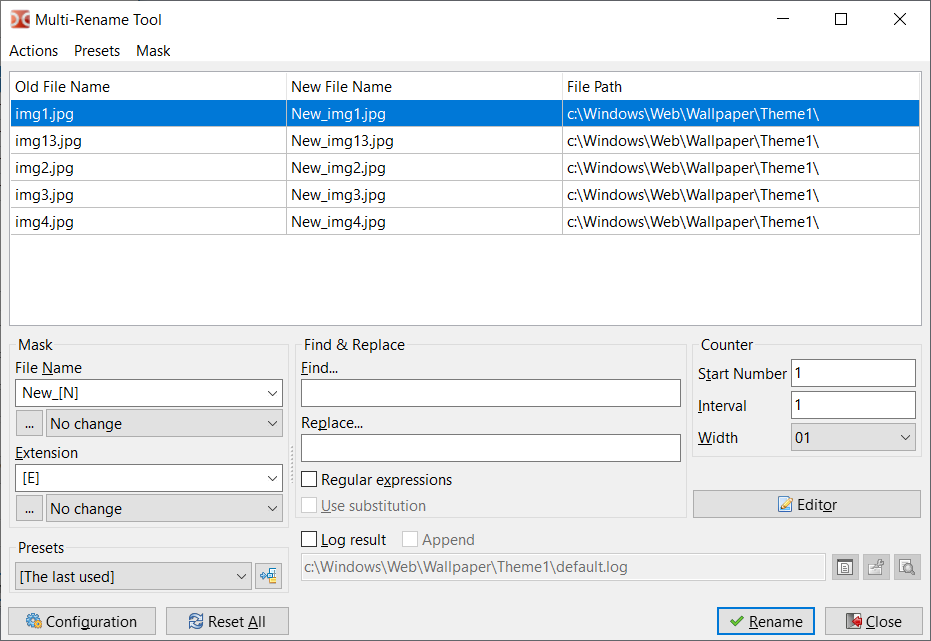
Rename batches of files using patterns, counters, regular expressions, or find-and-replace rules. The multi-rename dialog previews changes before applying them, so you can batch-rename hundreds of photos, documents, or music files with confidence.
Total Commander Plugin Support
Install WCX, WDX, WFX, and WLX plugins originally built for Total Commander. This opens up a huge library of existing extensions for archive formats, content detection, remote file systems, and custom file viewers – all compatible out of the box.
Archive Handling
Browse inside ZIP, TAR, GZ, BZ2, XZ, RPM, DEB, and other archive formats as if they were regular folders. Extract single files, add to archives, and navigate compressed packages without needing a separate archiver tool installed on your system.
Checksum Verification
Generate and verify SHA-256, SHA-512, BLAKE2, CRC32, and MD5 checksums directly from the file manager. This is useful for confirming download integrity, checking file corruption, or verifying backups after large transfers.
Customizable Keyboard Shortcuts
Assign multiple keyboard shortcuts per action and remap nearly every command. Double Commander supports configurable hotkeys for all operations – from file copying (F5) and deletion (F8) to custom tool execution – letting you build a fully keyboard-driven workflow.
Background File Operations
Copy, move, and delete operations run in the background with a progress queue. You can keep browsing and working with files while large transfers complete. The operations queue shows progress, speed, and estimated time remaining for each task.
All features work across Windows, macOS, and Linux. Download Double Commander to try them out.
System Requirements
Double Commander is lightweight and runs on hardware from the last 15 years. Here is what you need.
| Component | Minimum | Recommended |
|---|---|---|
| Operating System | Windows XP SP3 (32-bit), macOS 10.10, or any Linux with GTK2 | Windows 10/11 (64-bit), macOS 12+, or Linux with Qt5/Qt6 |
| Processor | Any x86 or x86_64 CPU (1 GHz single-core) | Dual-core 2 GHz or faster |
| RAM | 512 MB | 2 GB or more |
| Disk Space | 50 MB free (application files) | 100 MB free (with plugins and config) |
| Display | 1024 × 768 resolution | 1920 × 1080 or higher |
| Download Size | ~9 MB (Windows portable) | ~15 MB (macOS bundle) |
Portable Option
On Windows, Double Commander ships as both an installer and a portable ZIP. The portable version runs from a USB drive with zero installation.
Plugin Support
Total Commander WCX, WDX, WFX, and WLX plugins work with Double Commander. Additional disk space depends on which plugins you install.
Ready to get started? Download Double Commander for your platform.
Download Double Commander
Get the latest version of Double Commander for your operating system. All downloads come directly from the official GitHub releases.
Double Commander for Windows (64-bit)
Version 1.2.9 10.1 MB September 2026
Double Commander ships as both an installer and a portable ZIP. The portable version runs without installation – just extract and launch doublecmd.exe. If you prefer to build from source, visit the GitHub repository. Need help setting things up? Check the Getting Started guide.
Double Commander in Action
See the dual-pane file manager running on different platforms with various themes and tools. Click any image for a closer look.
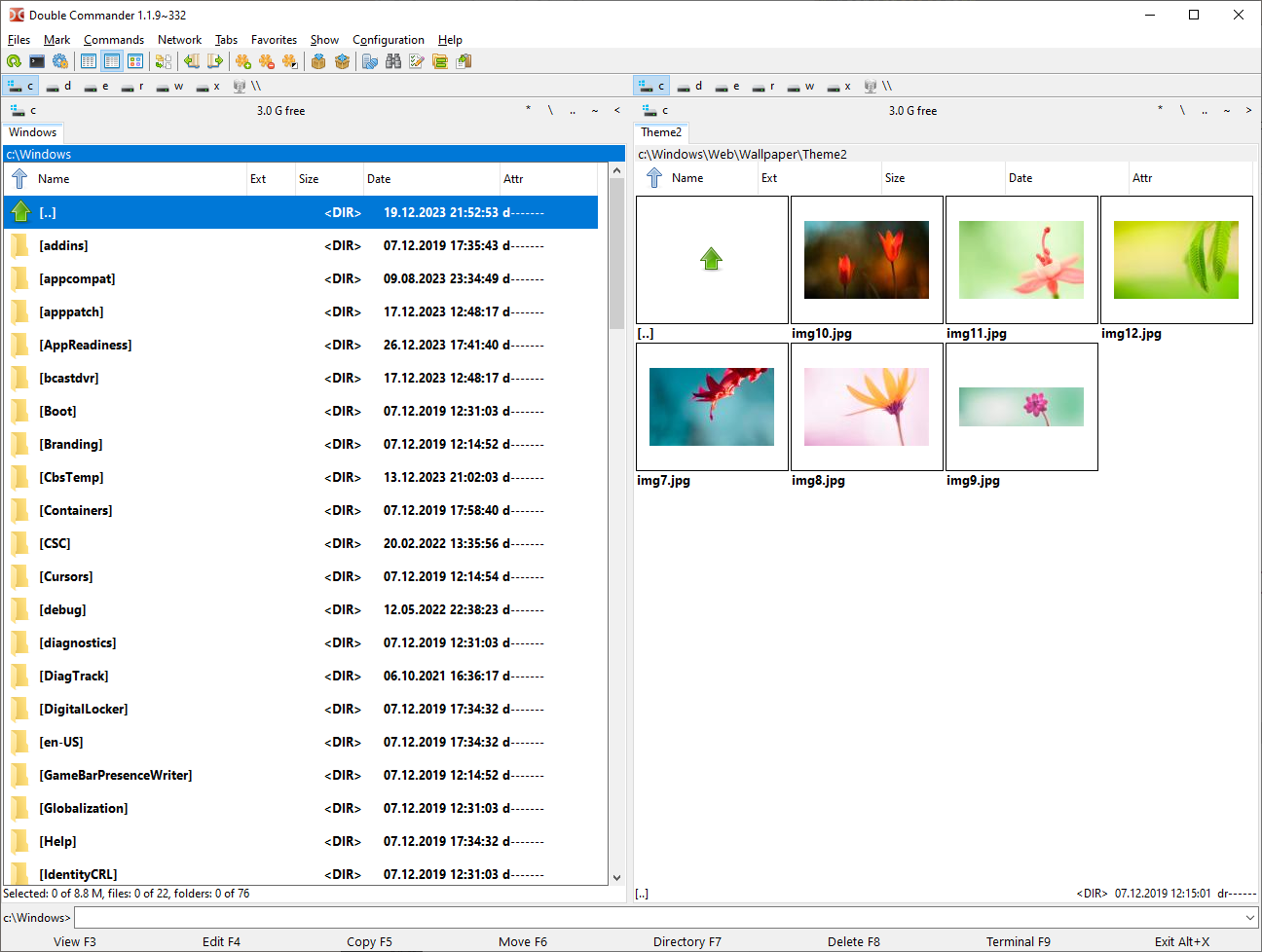
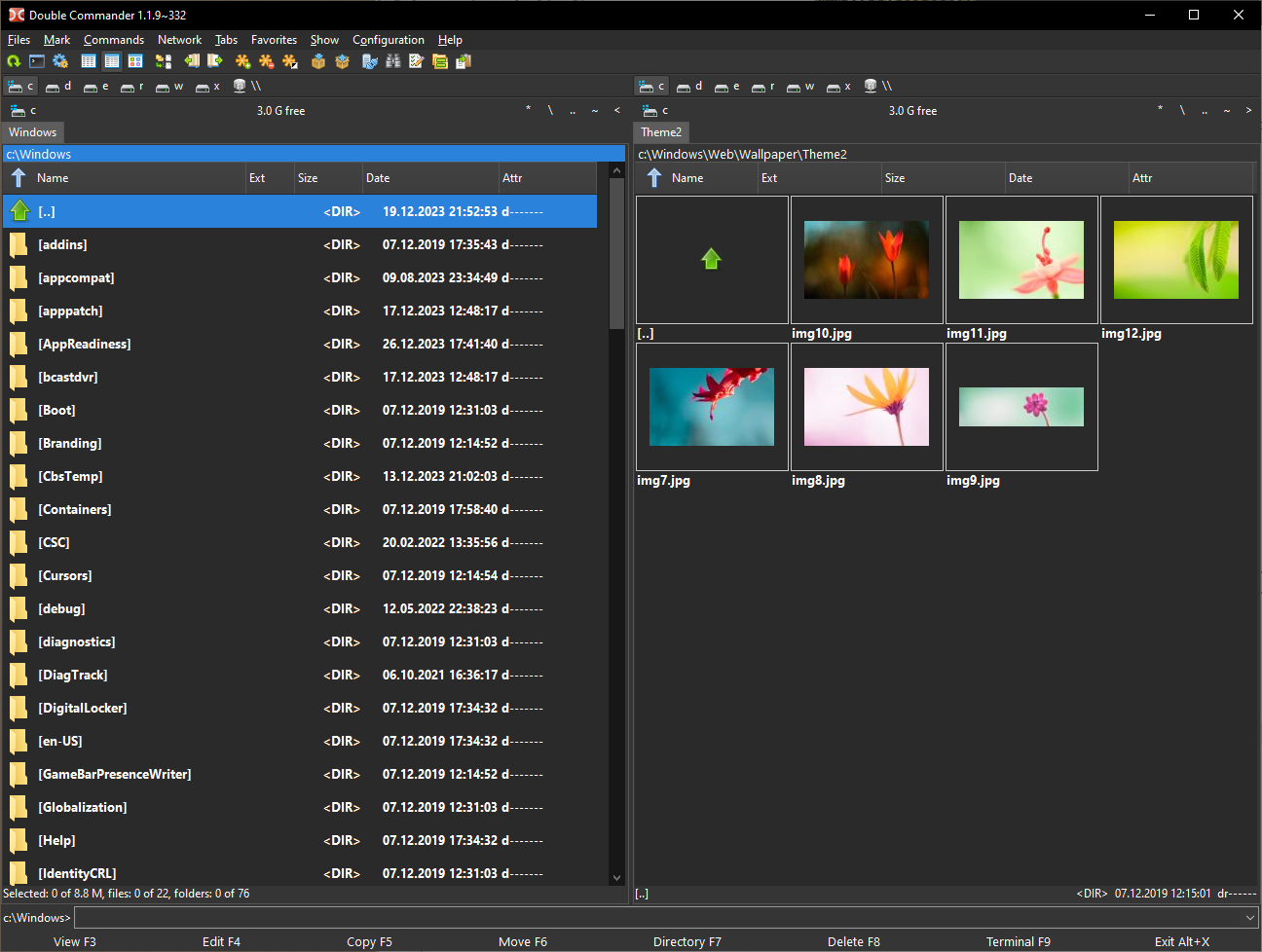
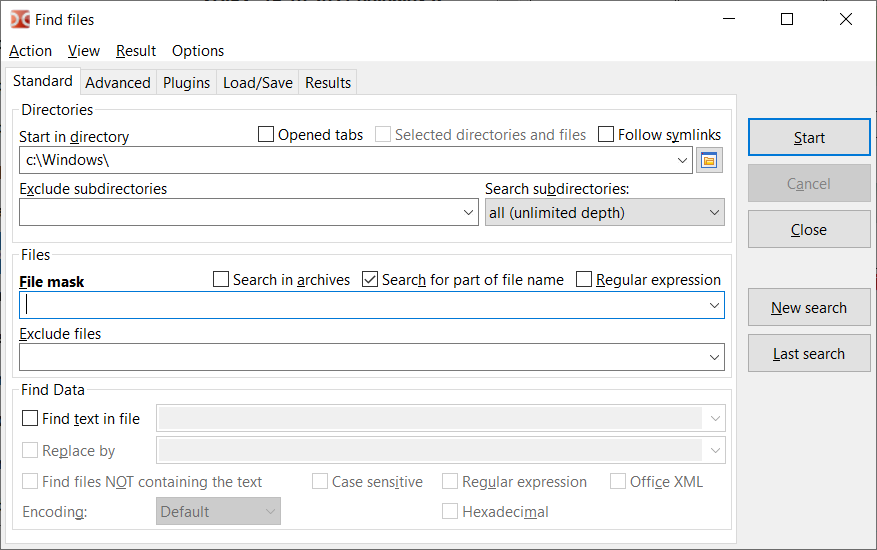
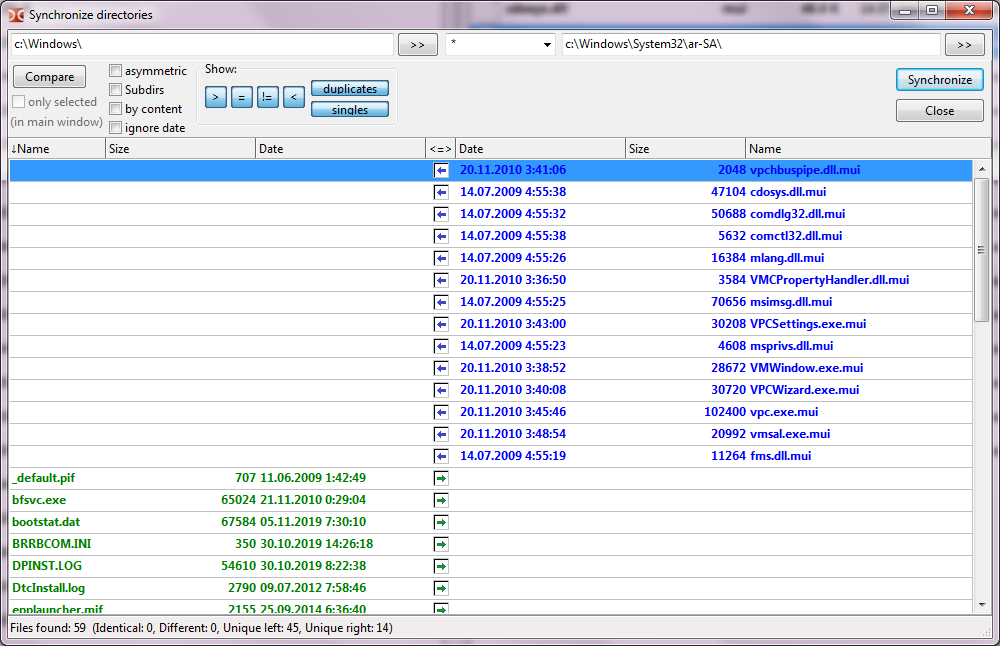
All screenshots from the official Double Commander project. Interface may vary by operating system and theme.
Getting Started with Double Commander
A hands-on walkthrough to help you download, install, and start managing files with Double Commander’s dual-pane interface on any operating system.
Downloading Double Commander
Head to our download section above to grab the latest version of Double Commander. The full installer for Windows 64-bit is around 10 MB, so even on a slow connection it should finish in under a minute.
You will see several package options. For Windows, pick between the .exe installer (recommended for most users) or the .msi installer if your organization requires that format. Both come in 32-bit and 64-bit versions. If you are running Windows 10 or 11 on a modern PC, go with the 64-bit .exe.
There is also a portable .zip package. This version does not need installation at all — just extract the archive to a USB drive or any folder, and run doublecmd.exe directly. Portable is a solid choice if you want to carry your file manager between computers without leaving traces.
brew install --cask double-commander. On Linux, use your package manager: sudo apt install doublecmd-gtk for Debian/Ubuntu, or sudo dnf install doublecmd-qt for Fedora.
Installation Walkthrough
Windows: Run the downloaded .exe file. If Windows SmartScreen pops up with a “Windows protected your PC” message, click More info, then Run anyway. This is normal for open-source software that does not carry a paid code-signing certificate.
- The installer opens with a language selector. Pick your language and click OK.
- Accept the GPL-2.0 license agreement and click Next.
- Choose your install directory. The default (
C:\Program Files\Double Commander) works fine for most setups. - On the components screen, leave all boxes checked. The default selection includes the core program, plugins, and file associations.
- Choose whether to create a desktop shortcut and Start Menu entry, then click Install.
- Installation finishes in a few seconds. Click Finish to launch Double Commander right away.
For automated deployment, the silent install flag is /VERYSILENT:
macOS: Open the downloaded .dmg file, then drag the Double Commander icon into your Applications folder. On first launch, macOS may warn about an unidentified developer. Go to System Settings > Privacy & Security and click Open Anyway.
Linux: If you used apt or dnf, installation is automatic. For Flatpak users:
After install on any platform, Double Commander creates its configuration directory automatically on first launch. No registration or account creation needed.
Initial Setup & Configuration
When you first open Double Commander, you will see two file panels side by side, each showing your home directory (or C:\ on Windows). The program works out of the box, but a few quick adjustments make the experience better.
Open the settings dialog from the menu: Configuration > Options (or press the keyboard shortcut). Here are the settings worth changing right away:
- Language — Under Configuration > Options > Language, pick your preferred language. Double Commander ships with over 30 translations.
- Layout — Under Configuration > Options > Layout, enable or disable the toolbar, function key bar, and drive buttons panel based on your preference.
- Fonts & Colors — Go to Configuration > Options > Colors > File panels to set font size and background colors for each panel. Many users bump the font to 12-14px for readability.
- File operations — Under Configuration > Options > File operations, set the default action for copy conflicts (skip, overwrite, or ask). Choosing “Ask” is safest when you are still learning.
- Keyboard shortcuts — Under Configuration > Options > Hot Keys, you can remap every action. Double Commander supports multiple shortcuts per action, so you can add your own without removing the defaults.
All settings are saved to doublecmd.xml in your config directory. You can copy this file between machines to replicate your setup.
Your First File Management Session
The core idea is simple: the left panel shows one location, the right panel shows another. You select files in one panel and copy or move them to the other. Here is a practical example.
Copying photos from Downloads to a backup folder:
- In the left panel, navigate to your Downloads folder using the path bar at the top. Type the path directly or click through directories.
- In the right panel, navigate to your backup location (e.g.,
D:\Backup\Photos). - In the left panel, click on the files you want to copy. Hold Shift for a range or Ctrl for individual files. Selected files turn highlighted.
- Press F5 to copy the selected files to the right panel. A dialog appears showing the destination path — confirm with OK.
- Double Commander shows a progress bar with transfer speed and estimated time remaining. Files copy in the background, so you can keep browsing.
Use F6 to move files instead of copying, or F7 to create a new directory. Press Tab to jump between panels quickly.
Here are the essential keyboard shortcuts you will use constantly:
| Shortcut | Action |
|---|---|
| Tab | Switch between left and right panels |
| F3 | View selected file (text, hex, or image) |
| F4 | Open selected file in the built-in text editor |
| F5 | Copy selected files to the opposite panel |
| F6 | Move / rename selected files |
| F7 | Create a new directory |
| F8 / Del | Delete selected files |
| Ctrl+T | Open a new tab in the active panel |
| Ctrl+W | Close the current tab |
| Alt+F7 | Open the search dialog |
| Ctrl+M | Open the Multi-Rename tool |
Tips, Tricks & Best Practices
Multi-Rename tool: Select a batch of files and press Ctrl+M to open the multi-rename dialog. You can add counters, change extensions, find-and-replace text in filenames, and preview every change before applying. This alone saves hours compared to renaming files one by one.
Directory hotlist: Press Ctrl+D to open the directory hotlist — a favorites menu for folders you visit often. Add your most-used directories here for instant access instead of navigating manually each time.
Internal viewer: The built-in viewer (F3) handles plain text, hex dumps, images, and HTML files. You do not need an external viewer for quick file inspections. For code files, the internal editor (F4) provides syntax highlighting.
Plugins: Double Commander supports Total Commander WCX (packer), WDX (content), WFX (file system), and WLX (lister) plugins. Browse the plugin directory at totalcmd.net for hundreds of extensions that add support for additional archive formats, cloud storage, and more.
Avoid common mistakes: New users sometimes close Double Commander by pressing F8 (Delete) instead of Alt+F4 (Quit) because of muscle memory from other programs. Double-check which key you are pressing before confirming a delete action. Also, remember that F6 both moves and renames files — if you want to rename in place, make sure the destination path stays the same.
For updates, check the official SourceForge page or GitHub releases periodically. Double Commander does not auto-update, so grab new versions manually from our download section when they become available.
Ready to try the dual-pane workflow?
Download Double CommanderFrequently Asked Questions
Answers to the most common questions about downloading, installing, and using Double Commander on Windows, macOS, and Linux.
Is Double Commander safe to download and use?
Yes, Double Commander is safe. The project is fully open source under the GPL-2.0 license, and every release is built from publicly auditable source code hosted on GitHub. Alexander Koblov and a group of contributors have maintained the codebase since 2003, with the commit history visible to anyone.
The Windows installer (doublecmd-1.2.9.x86_64-win64.exe, roughly 10 MB) has been scanned by services like VirusTotal with zero detections across Avast, Kaspersky, Bitdefender, Malwarebytes, and Microsoft Defender. On SourceForge, the project has accumulated millions of downloads without a single substantiated malware report. You may occasionally see a Windows SmartScreen warning when running the installer – that happens because the binary is not code-signed with a commercial certificate, not because anything is wrong with the file.
- Download only from official sources: our download section, GitHub releases, or SourceForge
- Verify the SHA-256 checksum provided on the releases page against your downloaded file
- Avoid third-party repackagers like Softonic, CNET, or FileHippo that sometimes bundle adware
Pro tip: Double Commander includes a built-in checksum calculator (Files > Calculate checksums) so you can verify file integrity without needing extra tools.
For more on what Double Commander offers, check the features overview.
Is Double Commander free from malware and spyware?
Double Commander contains zero malware, spyware, adware, or telemetry. The entire codebase is written in Free Pascal and compiled with Lazarus, and since every line of code sits in a public GitHub repository, independent security researchers can (and do) audit it regularly.
Unlike some freeware file managers that bundle browser toolbars or sponsored software during installation, Double Commander’s installer is clean. There are no opt-out checkboxes hiding unwanted extras, no “recommended” third-party apps, and no phone-home analytics. The application makes no outbound network connections unless you explicitly use its FTP/SFTP or network file system plugins.
- No bundled toolbars or adware – the installer only installs Double Commander itself
- No usage tracking or telemetry of any kind baked into the binary
- No network activity unless you initiate a remote connection through the built-in FTP client
- Open-source since 2003, with over 20 years of community scrutiny
Pro tip: If you want the absolute cleanest install, grab the portable ZIP version from our download section – it writes nothing to the Windows registry and leaves zero traces when deleted.
See our system requirements to confirm your machine is compatible before downloading.
Where is the official safe download for Double Commander?
The two official distribution channels for Double Commander are the GitHub releases page (github.com/doublecmd/doublecmd/releases) and the SourceForge project page (doublecmd.sourceforge.io). Both are maintained directly by lead developer Alexander Koblov.
On this site, the download section links directly to these official sources with verified URLs. Each release includes Windows installers (32-bit and 64-bit EXE), macOS DMG packages, and Linux builds in DEB, RPM, and generic tarball formats. The current version is 1.2.9, released September 27, 2026, weighing around 9-10 MB for Windows.
- GitHub Releases – the primary source for all platforms and architectures
- SourceForge – mirrors the same files, plus hosts the bug tracker
- Linux package managers – available in Debian, Ubuntu, Fedora, Arch, and FreeBSD repos (though repository versions sometimes lag behind the latest release)
Pro tip: On Linux, Double Commander maintains its own PPA and repository that stays up to date faster than distro repos. Add it manually if you want same-day access to new releases.
Head to our download section to grab the latest version for your operating system.
Does Double Commander work on Windows 11?
Double Commander works perfectly on Windows 11, including the latest 24H2 update. It also runs on Windows 10, 8.1, 8, 7, Vista, and even XP if you need it on legacy hardware. Both 32-bit and 64-bit builds are available.
On Windows 11, the application renders correctly with the new Mica/Acrylic shell, though it uses its own interface toolkit rather than native Windows controls. This actually works in its favor – the dual-pane layout, function key bar, and tabbed browsing look and behave identically regardless of your Windows version or DPI scaling. Users running Windows 11 on ARM processors (like Surface Pro X) can run the 32-bit version through emulation, though a native ARM build is not yet available.
- Full support for Windows 11 22H2, 23H2, and 24H2
- High-DPI and 4K display scaling handled by the Lazarus framework
- Dark mode supported through Options > Colors – choose from preset dark themes or build your own
- File associations and “Open with” context menu integration both work correctly
Pro tip: If you notice blurry text on a high-DPI monitor, right-click doublecmd.exe > Properties > Compatibility > Change high DPI settings, then enable “Override high DPI scaling behavior” set to “Application.”
Check the system requirements for minimum hardware specs.
What are the minimum system requirements for Double Commander?
Double Commander is remarkably lightweight. It needs a dual-core CPU, 512 MB of RAM, and roughly 50 MB of free disk space for the installed application. Those are the official minimums, but in practice it runs comfortably on hardware from 2008 or later.
The application itself is about 9-10 MB to download on Windows, expanding to around 40-50 MB installed. Memory usage during normal file browsing hovers between 30-60 MB of RAM, which is significantly less than most modern file managers. Even background file operations (copying, checksumming) add minimal overhead because they run in separate threads rather than blocking the interface.
- OS: Windows XP or newer, macOS 10.10+, or Linux with GTK2/Qt5/Qt6
- CPU: Any dual-core processor (Intel, AMD, even older Atom chips)
- RAM: 512 MB minimum, 2 GB recommended for handling large directories
- Disk: ~50 MB for installation, plus space for any plugins you add
- Display: 1024×768 minimum resolution (dual-pane layout needs horizontal space)
Pro tip: If you are working on a machine with limited RAM, disable thumbnail previews in Options > File panels > Columns by removing the “Preview” column. This drops memory usage considerably when browsing image-heavy folders.
See the full system requirements table for recommended specs per platform.
Does Double Commander support 32-bit operating systems?
Yes, Double Commander provides dedicated 32-bit builds for Windows. The i386 (x86) installer is available alongside the 64-bit version on both GitHub and SourceForge, so legacy machines running 32-bit Windows XP, 7, or 10 are fully supported.
On Linux, 32-bit packages were historically available but have become less common as most distributions dropped i386 support. If your Linux distro still ships 32-bit packages, Double Commander should be in the repo. Otherwise, you can compile from source using FPC 3.2.2 and Lazarus 2.2.6 targeting the i386 architecture. The macOS version is 64-bit only, as Apple dropped 32-bit support entirely starting with macOS Catalina (10.15).
- Windows 32-bit: Fully supported with dedicated installer (~9 MB)
- Linux 32-bit: Available in some repos; compile from source if needed
- macOS 32-bit: Not available (Apple requirement, not a Double Commander limitation)
Pro tip: On 32-bit Windows with limited RAM, use the portable ZIP version instead of the installer. It skips registry entries and shell integration, saving a few megabytes of working memory.
Download the 32-bit version from our download section.
Is Double Commander completely free to download and use?
Double Commander is 100% free. There is no paid version, no “pro” tier, no feature gating, and no time-limited trial. Every feature the application offers – dual-pane browsing, plugin support, multi-rename, directory sync, the built-in editor – is available to every user from day one.
The project is released under the GNU General Public License version 2 (GPL-2.0), which means you can freely download, use, redistribute, and modify the source code. This license has been in place since the project started, and there are no plans to change it. Unlike Total Commander (which is shareware with a 30-day evaluation that nags you to purchase), Double Commander will never ask you for money or display “please register” popups.
- No purchase required, ever – not now, not after 30 days, not for “premium” features
- No ads, no sponsored content, no upsells within the application
- GPL-2.0 license guarantees the software stays free and open source
- Commercial use is permitted under the GPL terms
Pro tip: If you want to support development, check the project’s GitHub page for information on contributing code, translations, or bug reports. There is no donation button, but contributions to the codebase are always welcome.
Ready to get started? Visit our download section for the latest release.
What is the difference between Double Commander and Total Commander?
Double Commander is the free, open-source alternative to Total Commander. Both offer dual-pane file management with tabs, built-in viewers, and extensive keyboard shortcuts, but they differ significantly in licensing, platform support, and development model.
Total Commander is shareware made by Christian Ghisler. It costs $44 USD for a personal license and runs only on Windows (plus an Android app). Double Commander costs nothing, runs on Windows, macOS, Linux, FreeBSD, and Haiku, and ships every feature without restrictions. Total Commander has a more polished Windows-native feel and a larger plugin ecosystem due to its 30+ year head start. Double Commander compensates by supporting Total Commander’s WCX, WDX, WFX, and WLX plugin formats, so many TC plugins work directly.
- Price: Double Commander is free (GPL-2.0); Total Commander is $44 shareware
- Platforms: Double Commander runs on Windows, macOS, Linux, FreeBSD; Total Commander is Windows-only
- Plugin compatibility: Double Commander supports TC plugin APIs (WCX/WDX/WFX/WLX)
- Interface: Both use the same dual-pane paradigm with function keys (F3-F8)
- Source code: Double Commander is open source; Total Commander is proprietary
Pro tip: If you are migrating from Total Commander, Double Commander can import your TC configuration, color schemes, and keyboard shortcuts through Options > Import settings. Your existing TC plugins typically work without modification on Windows.
See our features section for a full breakdown of what Double Commander offers.
How do I download and install Double Commander step by step?
Installing Double Commander takes under two minutes. Download the installer from our download section, run it, and follow the wizard. The entire process is straightforward with no bundled software or tricky opt-out screens.
The Windows installer is about 10 MB and comes as a standard EXE. On macOS, you get a DMG file (~15 MB) that you drag to Applications. Linux users can install through their package manager or download DEB/RPM packages directly.
- Go to the download section and pick your platform (Windows 64-bit is the most common choice)
- Run the downloaded file – on Windows, right-click and select “Run as administrator” if SmartScreen blocks it
- Choose your installation directory (default is C:\Program Files\Double Commander)
- Select whether to create a desktop shortcut and Start Menu entry
- Click Install and wait about 10 seconds for the files to extract
- Launch Double Commander from the desktop shortcut or Start Menu
Pro tip: During installation, check the “Associate with file types” option if you want Double Commander to handle archive files (ZIP, 7z, TAR) through its built-in packer. You can always change this later in Options > File associations.
For detailed first-run configuration, see the Getting Started guide.
Double Commander portable vs installer – which version should I choose?
Pick the portable version if you want to run Double Commander from a USB drive or keep your system registry clean. Pick the installer if you want shell integration, file associations, and Start Menu shortcuts.
The portable ZIP is the same application binary, just without the installer wrapper. You extract it to any folder (USB stick, Dropbox, external drive) and run doublecmd.exe directly. Configuration files stay inside the program folder instead of %APPDATA%, which means your settings travel with the portable copy. The installed version writes its config to C:\Users\[name]\AppData\Roaming\doublecmd and registers file associations with Windows Explorer.
- Portable ZIP: No registry changes, no admin rights needed, runs from any location, config stays local
- Installer EXE: Creates shortcuts, registers file associations, integrates with Windows context menu
- Size difference: Both are roughly 9-10 MB on Windows
- Feature difference: None – both versions have identical functionality
Pro tip: You can run both versions side by side. Install the EXE version for daily use with shell integration, and keep a portable copy on a USB drive for when you are working on someone else’s computer. They do not conflict with each other.
Grab either version from our download section.
How to fix Double Commander installation errors on Windows?
Most installation errors on Windows come from SmartScreen blocks, antivirus false positives, or permission issues. Here is how to fix each one.
Windows SmartScreen may flag the installer because it lacks an EV code-signing certificate (which costs money the open-source project does not spend). This is a false positive – the file is safe. Antivirus software occasionally quarantines the installer for the same reason, especially heuristic-based scanners that flag unsigned executables. Permission errors usually happen when trying to install to C:\Program Files without admin rights.
- SmartScreen block: Click “More info” on the warning dialog, then click “Run anyway”
- Antivirus quarantine: Add an exception for the doublecmd installer in your AV settings, then re-download and try again
- Access denied: Right-click the installer > “Run as administrator”
- Corrupted download: Re-download the file and verify the SHA-256 checksum matches the one listed on the GitHub releases page
- “Already installed” error: Uninstall the existing version through Control Panel > Programs first, then install the new version
Pro tip: If the installer keeps failing, skip it entirely and use the portable ZIP version. Extract it to C:\Tools\DoubleCmd (or any folder your user account can write to) and create a shortcut manually. Same application, no installer needed.
Step-by-step installation details are in the Getting Started guide.
How to fix Double Commander not opening, crashing, or freezing?
If Double Commander will not open or freezes on launch, the most common culprits are a corrupted configuration file, a conflicting plugin, or a display scaling issue. Here is how to diagnose and fix each scenario.
On Linux, a known bug (GitHub issue #1717) causes the Qt5 version to freeze when regaining window focus after switching applications. The workaround is switching to the GTK2 build or disabling auto-refresh in Options > File panels. On Windows, crashes at startup usually point to a broken doublecmd.xml config file – renaming it forces a clean configuration on next launch.
- Reset config: Navigate to %APPDATA%\doublecmd (Windows) or ~/.config/doublecmd (Linux) and rename doublecmd.xml to doublecmd.xml.bak, then relaunch
- Disable plugins: Move the plugins folder out of the Double Commander directory temporarily and try launching again
- Try a different UI toolkit (Linux): If using doublecmd-qt5 or qt6, install doublecmd-gtk2 instead (sudo apt install doublecmd-gtk)
- Check display scaling: On Windows with 125%+ scaling, set the EXE compatibility to “System (Enhanced)” DPI mode
- Run from terminal: Launch doublecmd from a command prompt to see error messages that might explain the crash
Pro tip: Double Commander keeps a backup of your previous configuration in doublecmd.xml.bak automatically. If a config change causes problems, you can swap the backup back in without losing all your settings.
Check our system requirements to make sure your setup meets the minimum specs.
Why is Double Commander running slow and how do I speed it up?
Double Commander is normally very fast, using only 30-60 MB of RAM during typical file browsing. If it feels sluggish, the problem is almost always related to thumbnail generation, network drives, or large directory listings rather than the application itself.
When you open a folder with thousands of files (10,000+), the file list takes time to populate, especially if the panel is set to show file icons or thumbnails. Network-mounted drives (SMB/NFS shares) add latency for every file stat call. On Linux, the Qt6 version has been reported as slightly slower than GTK2 in certain rendering scenarios.
- Disable thumbnails: Go to Options > File panels > Columns and remove the preview/thumbnail column
- Reduce file list columns: Drop columns you do not need (attributes, owner) to reduce per-file I/O
- Switch to brief view: Use View > Brief view for folders with 5,000+ files
- Disable auto-refresh on network drives: Options > File panels > uncheck “Auto-refresh file panels” for slow mounts
- On Linux, try the GTK2 build: It tends to render faster than Qt5/Qt6 on some desktop environments
Pro tip: Use the Directory Hotlist (Ctrl+D) to bookmark your most-used folders. This skips repeated navigation through deep folder trees and makes Double Commander feel significantly snappier in daily use.
For optimal performance specs, review the system requirements.
Double Commander stopped working after a Windows update – how to fix?
Windows updates occasionally break Double Commander’s shell integration or reset file association settings. The application itself almost never stops working – what typically breaks is the context menu integration or the shortcut that launches it.
Major Windows 11 updates (like 23H2 to 24H2) sometimes reset the “Open with” defaults, removing Double Commander from archive file associations you previously set up. In rarer cases, a Windows Defender definition update may briefly flag the unsigned doublecmd.exe as suspicious, quarantining it until you restore it manually. These issues are not unique to Double Commander – they affect many third-party applications after feature updates.
- Check if EXE was quarantined: Open Windows Security > Protection history and look for doublecmd.exe in recently quarantined items. Restore it and add an exception.
- Reinstall over existing: Download the latest version from our download section and run the installer. Choose the same directory – it will update in place without losing settings.
- Restore file associations: Open Options > File associations inside Double Commander to re-register archive handlers.
- Recreate shortcut: If the desktop shortcut broke, right-click doublecmd.exe in the install folder > Send to > Desktop.
Pro tip: Export your Double Commander settings periodically via Options > Export configuration. Save the backup outside the program directory. After any disruptive Windows update, you can import your full configuration in seconds.
Visit the Getting Started guide for reinstallation instructions.
How do I update Double Commander to the latest version?
Double Commander does not have a built-in auto-updater. To update, download the latest release from our download section and either run the new installer over the existing installation or replace the portable files manually.
The current version is 1.2.9 (released September 27, 2026). Updates come roughly every 2-3 months. The development team has discussed adding an in-app update checker (it was requested on the official forum at doublecmd.h1n.ru), but as of the latest release, you need to check for new versions yourself. Each release’s changes are listed on the GitHub releases page and the SourceForge Mantis bug tracker.
- Check the current version: Help > About inside Double Commander
- Visit our download section or the GitHub releases page to see if a newer version exists
- Installer users: Download the new EXE and run it – it installs over the old version, preserving your settings in %APPDATA%\doublecmd
- Portable users: Extract the new ZIP over the existing folder, overwriting files. Your config (doublecmd.xml) is preserved because it lives in the same directory.
- Linux package manager users: run
sudo apt update && sudo apt upgrade doublecmd-gtk(or doublecmd-qt5)
Pro tip: Bookmark the GitHub releases page and enable “Watch > Releases only” on the repository to get email notifications when a new version drops.
For initial setup steps, check the Getting Started guide.
What is new in the latest version of Double Commander?
The newest release is Double Commander 1.2.9, published September 27, 2026. It belongs to the 1.2.x “gamma” series, which replaced the 1.1.x line as the recommended release in mid-2026. Our download section updates automatically whenever a new version ships.
Double Commander releases are labeled “gamma” rather than “stable” or “beta” because the developers consider the software production-ready but still actively evolving. Each point release typically includes bug fixes, performance tweaks, and occasional new features. The changelog is posted on the project’s Mantis bug tracker. Previous notable releases included fixes for SMB file deletion crashes, improvements to the multi-rename tool regex handling, and better support for Qt6 rendering on Wayland-based Linux desktops.
- Bug fixes for file operations on network shares (SMB/CIFS)
- Improvements to the internal text editor’s syntax highlighting
- Better HiDPI rendering on Windows and Linux Qt6
- Updated plugin API compatibility for newer Total Commander plugins
- Various fixes reported through the Mantis bug tracker and GitHub issues
Pro tip: If you want to test bleeding-edge features before they land in an official release, nightly builds are available from the SourceForge files section. Back up your config first – nightlies can occasionally introduce regressions.
Download the latest version from our download section.
Double Commander vs Total Commander vs FreeCommander – which is the best file manager?
Double Commander is the best option if you want a free, cross-platform dual-pane file manager with Total Commander compatibility. Total Commander wins on polish and plugin ecosystem. FreeCommander sits in between as a Windows-only freeware option.
Total Commander ($44 shareware, Windows only) has been around since 1993 and has the largest plugin library of any dual-pane file manager. Its interface is extremely mature but looks dated. FreeCommander XE (free for personal use, Windows only) offers a more modern UI with a tabbed, dual-pane layout but lacks the plugin compatibility and cross-platform support that Double Commander provides. Double Commander handles Total Commander WCX/WDX/WFX/WLX plugins, works on Windows, macOS, Linux, and FreeBSD, and costs nothing.
- Double Commander: Free, GPL-2.0, cross-platform (Win/Mac/Linux), TC plugin support, active development
- Total Commander: $44, Windows only, largest plugin ecosystem, most mature, proprietary
- FreeCommander XE: Free for personal use, Windows only, modern UI, no TC plugin support, closed source
- Midnight Commander (mc): Free, terminal-based, Linux/macOS, ideal for SSH sessions
Pro tip: If you are currently on Total Commander and considering the switch, Double Commander can import your TC configuration files. Test it side-by-side for a week before deciding – most users find the transition smooth because the keyboard shortcuts and dual-pane workflow are nearly identical.
See our features breakdown for everything Double Commander includes out of the box.
How do I customize keyboard shortcuts and hotkeys in Double Commander?
Double Commander has one of the most flexible hotkey systems of any file manager. You can assign multiple keyboard shortcuts to any single action, and nearly every command in the application is rebindable.
The hotkey editor lives in Options > Hotkeys (or press the gear icon in the toolbar). You will see a categorized list of all available commands – file operations, panel navigation, view changes, tools, and more. Each command can have one or more key combinations assigned. The default set mirrors Total Commander closely (F5 for copy, F6 for move, F7 for new directory, F8 for delete), but you can remap everything to match your personal workflow.
- Open Options > Hotkeys from the top menu
- Find the command you want to rebind using the search box or category tree
- Click the hotkey field and press your desired key combination
- If the combination conflicts with an existing binding, DC warns you and lets you override or pick a different key
- Click OK to save – changes take effect immediately
Pro tip: Assign Ctrl+Shift+C to “Copy full path to clipboard” and Ctrl+Shift+N to “Copy filename to clipboard.” These two shortcuts save enormous time when you are pasting file paths into terminal commands or scripts. Also, set up Ctrl+D for the Directory Hotlist – it is the single most useful navigation shortcut in the entire application.
Explore more productivity features in our features section.
Does Double Commander support plugins and how do I install them?
Yes, Double Commander supports four types of plugins using the same API as Total Commander: WCX (packer/archive), WDX (content/search), WFX (file system), and WLX (lister/viewer). Many plugins built for Total Commander work directly in Double Commander without modification.
Packer plugins (WCX) add support for archive formats beyond the built-in ones. Content plugins (WDX) let you search files by metadata like EXIF data, MP3 tags, or PDF properties. File system plugins (WFX) provide access to remote systems like FTP, SFTP, cloud storage, or registry editors. Lister plugins (WLX) extend the built-in file viewer to handle specialized formats like office documents or image files.
- Download the plugin file (usually a .wlx, .wcx, .wdx, or .wfx file plus a supporting DLL)
- Open Options > Plugins in Double Commander
- Select the appropriate plugin type tab (WCX, WDX, WFX, or WLX)
- Click “Add” and browse to the downloaded plugin file
- Restart Double Commander for the plugin to take effect
Pro tip: The totalcmd.net plugin library works with Double Commander on Windows. Start with the 7zip WCX plugin for broader archive support and the Imagine WLX plugin for image previews. On Linux, plugin support is limited to plugins compiled for the Linux platform – Windows DLL plugins will not work.
Learn more about Double Commander’s built-in capabilities in the features section.
Still have questions? Visit the official documentation or check the Getting Started guide to begin using Double Commander.